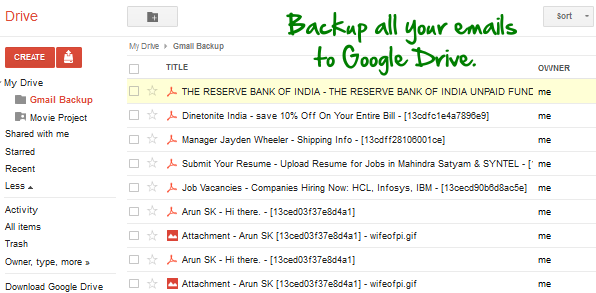
Gmail integration with Google Drive to archive emails is something a lot of people want. But Google doesn't provide any such integration by default. Here's an easy way to archive all your emails in any label to your Google drive using Google scripts.All emails will be archived as PDF files in a folder called "Gmail backup" in your drive.
Archving your emails.
Follow these steps to archive your mails -
- First open this "Gmail archiver spreadsheet" and select File->Make a Copy. This will copy the spreadsheet to your Google Drive.
- Just wait for the sheet to fully load and the "Gmail Drive Backup" menu to appear. It may take a few seconds depending on your internet speed, so please be patient.
- Select "Gmail Drive Backup" menu, click "Initialize" and grant the permissions required.
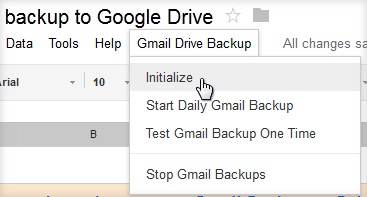
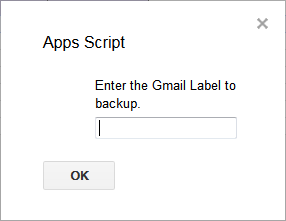
- Now select "Gmail Drive Backup" again and click "Start Daily Gmail Backup". You will be asked to enter the Gmail Label you want to archive.
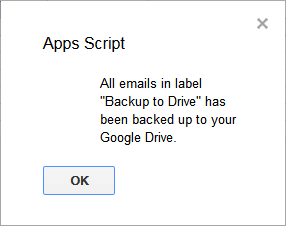
That's it, the script will now convert your emails from that label into pdf files and move them to a new "Gmail backup" folder on your Google drive. Attachments also will be moved. The PDF email will also have a link to the attachment stored in your drive which you can download any time you want. You will also get a confirmation message once done.
Here are some features of this script -
- Option to test out one time or doing regular daily archivals.
- All mails are stored as PDF files with the original html/css styling intact. That means the PDF version in your Google drive will look exactly the same as the original mail.
- Every time an archival is done, the details get updated in the spreadsheet. You can open it any time to see what was done.
- Attachments are also archived to Google drive and links to attachments inserted in original mail for easy download.
- Regular backups can be stopped any time using the "Stop gmail backups" menu.
The only limitation is that images which are embedded as external links won't appear in the PDF version. All other images and attachments will remain in tact. But usually this only applies to mails like email newsletters. Also note that the archival is one directional. That means mails archived to Google drive can not be brought back to Gmail in the form of the original Mail. So use this only for emails you want to store on your drive and don't want on Gmail.
Here's a working video of the script in action.
Also See: Auto Delete old Emails in Any Gmail Label.